A searchable content library
Every car, track, skin and app you own is indexed in one place, filterable by name, class, tag, brand or country — even with hundreds of mods installed.
Content Manager turns a sprawling Assetto Corsa mod collection into one tidy, searchable library — installing cars and tracks by drag and drop, updating them in place and catching broken content before it spoils a session.
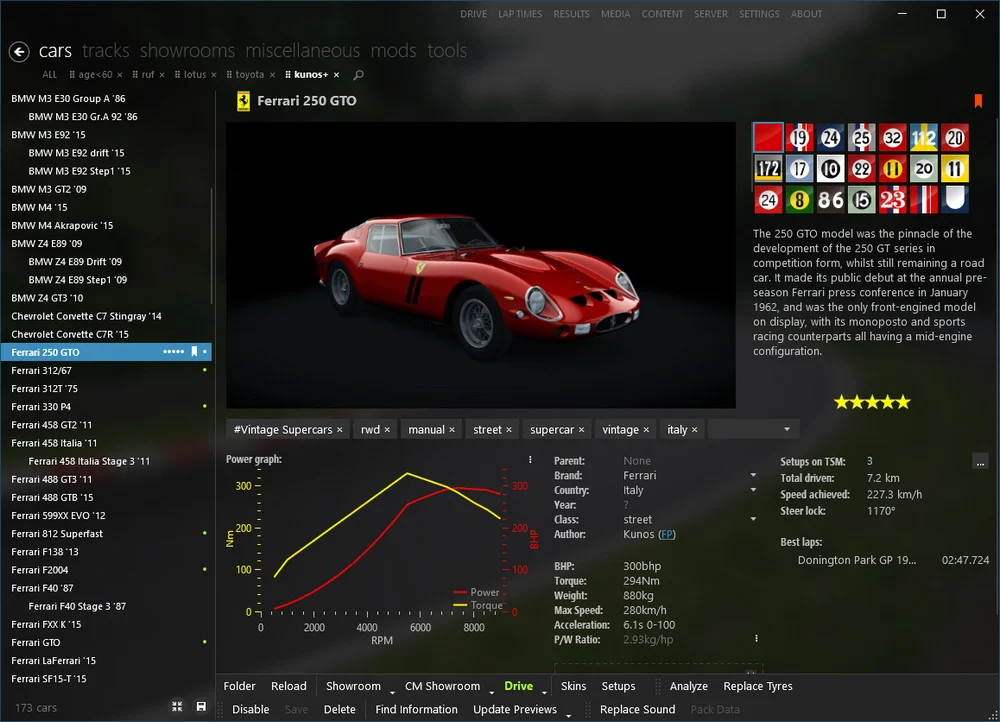
The Assetto Corsa modding scene is one of the largest of any racing simulator. Tens of thousands of cars and tracks have been built by the community, alongside countless skins, weather mods and in-game apps. That abundance is the reason so many people keep playing the game years after release — and it is also the reason a serious collection becomes genuinely difficult to manage. Content Manager exists to solve exactly that problem, and managing your content is, quite literally, where Content Manager gets its name.
This page is an independent, plain-English guide to using Content Manager as a mod manager: how it indexes everything you install, how mods are added and kept current, and how it warns you about broken content before it reaches the track. If you are new to Content Manager altogether, our complete Content Manager guide covers what it is and why it replaces the default launcher. When you are ready to set it up, the step-by-step installation guide walks you through downloading it from the official source.
Assetto Corsa ships with a respectable roster of official cars and tracks, but most players quickly move well beyond it. Within a few weeks of installing mods, it is entirely normal to have several hundred extra cars and dozens of additional circuits sitting in the game folders. Each of those mods is simply a set of files dropped into the Assetto Corsa directory structure.
That works, until it does not. The original Kunos launcher offers no real way to search a collection of that size, no way to see who made a particular car, and no way to tell which version of a mod you are running. Tidying up means digging through folders in Windows Explorer, where one misplaced file or a half-removed mod can quietly break a car or stop the game loading. The bigger the collection grows, the more time disappears into housekeeping rather than driving. Content Manager is not a luxury here — it is the only practical way to keep a large library under control.
The foundation of Content Manager as a mod manager is its content library. When the app first runs it scans your Assetto Corsa installation and indexes everything it finds — every car, every track, every skin and every app — into one organised, searchable view. From that moment, Content Manager is the layer between you and the raw game folders.
Each piece of content gets its own details page. For a car, that page typically gathers the specifications, the author credits, the skins available for it and the version currently installed; for a track it covers the layouts and similar information. Rather than guessing what is buried in your directories, you see a clear, consistent record of everything you own. Searching and filtering the library by name, class, tag, brand or country takes seconds, no matter how large the collection has become. The features below summarise what the launcher brings to mod management.
Every car, track, skin and app you own is indexed in one place, filterable by name, class, tag, brand or country — even with hundreds of mods installed.
Drop a mod archive onto the window and the launcher works out whether it is a car, track, skin or app, then places every file in the correct folder.
Each item gets its own page showing specifications, author credits, the skins available for it and which version is currently installed.
When a newer build of a mod is available, the app can update it where it sits, keeping its place in your library without a manual reinstall.
Switch off cars or tracks you are not currently using so they leave your menus, while the files stay on disk ready to be re-enabled later.
The launcher flags content that is broken or missing a required dependency, so you can fix it before it causes a problem in-game.
Adding new content is where the launcher saves the most effort. In most cases, installing a mod is as simple as dragging its downloaded archive straight onto the Content Manager window. There is no need to know where a particular type of file is meant to live.
When you drop an archive, Content Manager inspects it and works out for itself whether it contains a car, a track, a skin or an app. It then unpacks the files and copies them into the correct Assetto Corsa folder, following the structure the game expects. Afterwards it refreshes the content library so the new mod appears immediately, ready to drive. The same archive that once meant a careful manual extraction into exactly the right directory becomes a single drag-and-drop step — and because the launcher handles the placement, the common mistake of unpacking a mod into the wrong folder simply does not happen.
Mods are not static. Authors release new builds to fix bugs, improve physics or add content, and on a large collection it is easy to lose track of which cars are running an old version. Content Manager can update content in place: when a newer build is available, Content Manager refreshes the mod where it already sits in your library, so it keeps its place and its settings rather than needing to be removed and reinstalled.
How smoothly this works depends partly on how a mod author chooses to publish updates, and some content still has to be downloaded and added by hand. Even so, having the launcher track versions and surface updates from one place is far less error-prone than trying to remember the state of every car yourself. It also makes rolling a problematic mod back to an earlier build a far calmer task.
Not every car or track needs to be visible all of the time. A collection of several hundred cars can make the in-game menus unwieldy, and some online servers expect a specific, limited set of content. For these situations, Content Manager lets you disable individual items rather than removing them outright.
A disabled mod no longer appears in your menus, so your active list stays focused, but the files themselves remain on disk. Nothing is lost, and re-enabling an item later takes a moment. This is a far safer approach than deleting content to tidy up, because deletion is permanent and easy to regret. It is the difference between curating a library and gambling with it.
Some Assetto Corsa mods depend on other content to function — a car might require a particular shared resource, or a track might expect a companion file to be present. When something is missing, the result in the original launcher is usually an unhelpful crash or a car that simply will not load, with no clear explanation of the cause.
Content Manager reduces that frustration by checking your installed content and flagging anything that is broken or missing a dependency. Seeing a clear warning inside the app, before you start a session, is enormously more useful than discovering the fault mid-race. Content Manager points you towards what is wrong, so the issue can be resolved on your terms. For players who run heavily modified setups — particularly those layering on the Custom Shader Patch graphics mod — that early warning is a genuine safeguard against a broken installation.
All of this explains the name. Content Manager is not a vague piece of branding: Content Manager genuinely manages the content in your copy of Assetto Corsa. It indexes what you own, installs what you add, keeps it current, lets you switch items on and off, and warns you when something is wrong. Taken together, that is a complete content-management workflow, and it does the job far more reliably than the basic tools the base game provides.
For anyone who takes modding seriously, that is the real value of the launcher. The driving itself is still pure Assetto Corsa — the app changes nothing about how a car feels on track. What it changes is everything around the driving: it removes the housekeeping, the guesswork and the broken installs, and leaves you free to spend your time racing rather than managing files. To see the full picture of what the app does, read our complete Content Manager guide.
In most cases you simply drag the downloaded archive straight onto the Content Manager window. The app inspects the file, works out whether it contains a car, track, skin or app, and copies everything into the correct Assetto Corsa folder for you. It then refreshes the content library so the new mod is ready to use.
Yes. Content Manager lets you disable individual cars and tracks so they no longer appear in your menus, while the files remain on disk. This is useful for tidying a large collection or temporarily setting aside content for an online server, and you can re-enable an item at any time.
The launcher can update content in place when a newer build is available, so a mod keeps its position in your library rather than needing a full manual reinstall. Whether an update is offered depends on how the mod author publishes it; some content still has to be downloaded and added by hand.
Content Manager checks installed content and flags anything that is broken or relies on a file you do not have. Seeing that warning in the app is far better than discovering the problem mid-session, and it points you towards the missing piece so the issue can be resolved before you race.
The app places files in the standard Assetto Corsa content folders — cars, tracks, apps and so on — exactly where the game expects to find them. Because it follows the normal structure, your content also works without the launcher, although managing it by hand is far less convenient.
The launcher itself is safe when downloaded from the official source at assettocorsa.club. It does not, however, vet the mods you install — that responsibility rests with you. Download cars, tracks and skins from reputable community sources, and treat any unfamiliar archive with the same caution you would give any download.
Follow our step-by-step installation guide — it links to the official download and gets Content Manager set up so you can organise your content in a couple of minutes.
Open the installation guide